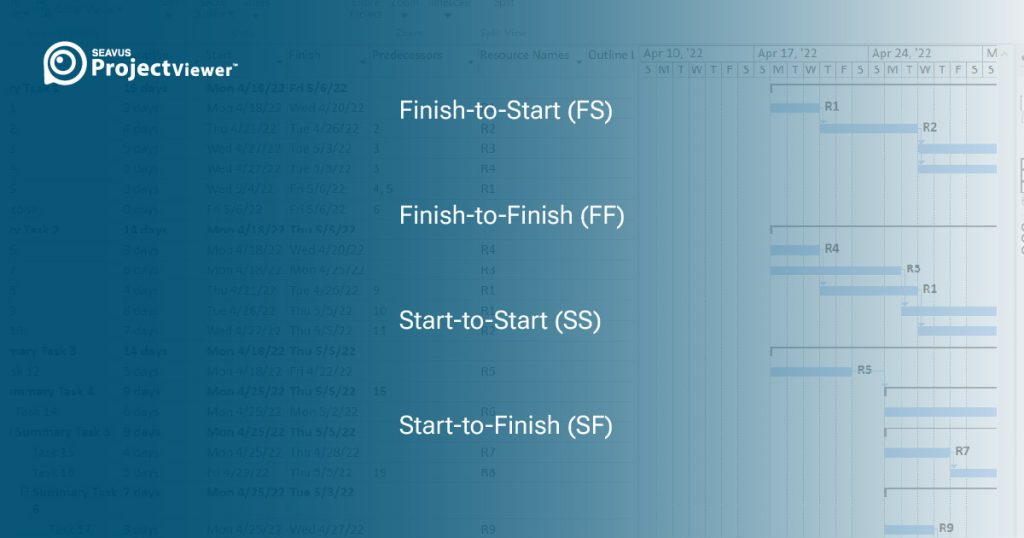
In Microsoft Project, predecessor types define how tasks relate to each other in time.
When you open a Microsoft Project plan, one of the first things you notice is how tasks are tied together. Every line seems to have a relationship with another. These links, known as task dependencies, determine how information flows through a project timeline. If you want to manage a project effectively, you need to understand how these relationships work, and this article will help you achieve that.
What Are Predecessor Types in MS Project?
A predecessor relationship tells Microsoft Project how two tasks are connected. It defines when a task can begin, or end based on another task’s start or finish.
The four dependency types are Finish to Start, Start to Start, Finish to Finish, and Start to Finish. Understanding how each one works helps project managers control sequencing, manage delays, and build realistic schedules.
Finish to Start (FS)
This is the most common (default relationship in Microsoft Project) relationship in project scheduling.
Task B can start only after Task A finishes.
Example:
We have two tasks. Task A: Pour concrete and Task B: Remove formwork
The order of tasks would be to start task Task A and finish it, then start Task B. Subsequently, you cannot remove the formwork until the concrete has been applied. In this example Task B depends on the finish of Task A.

This relationship creates straightforward, linear progress. The FS relationships are easy to understand and easy to track, which is why they dominate most schedules.
The Microsoft Project software uses the FS as the default relationship when creating a project plan. However, if the schedule is only built using this relationship, it stands to risk of being oversimplified and produces inaccurate timelines. Understanding the other three types gives you more flexibility and helps you model real project behavior.
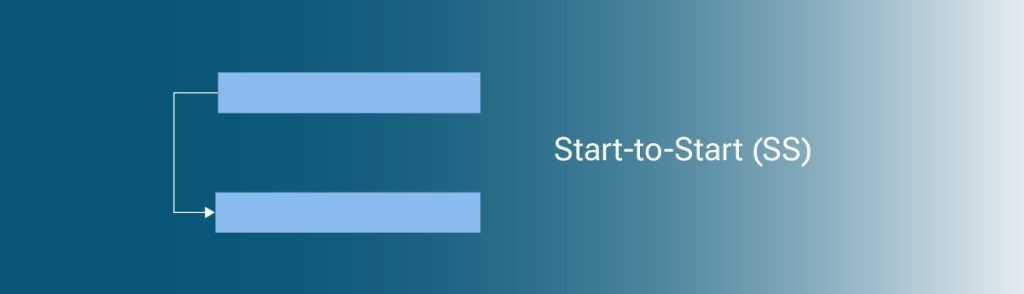
Start to Start (SS)
Task B can start only after Task A starts.
This means that both tasks can begin near the same time, however Task B cannot start before Task A has started.
Example:
We have two tasks, Task A: Begin excavation, and Task B: Begin hauling soil.
In this example, Task B or Hauling cannot begin before excavation starts. However, once the first bucket of soil is removed, hauling can begin. SS links helps plan out overlapping tasks where teams work in parallel. In addition, they allow you to shorten the project duration.
Finish to Finish (FF)
Task B can finish only after Task A finishes.
FF relationship does not mean that the tasks must start together, but rather focuses on the task’s completion, which is connected.
Example:
We have two tasks, Task A: Quality inspection and Task B: Final documentation.
In our example the process of documentation can start, but you will not be able to complete it until inspection finishes. This type of relationship ensures that the closing activity finishes only when the driving task is done.

FF relationships help maintain control over end dates. This relationship is especially useful when tasks are executed in parallel, but they cannot finish independently.
Start to Finish (SF)
Task B can finish only after Task A starts.
This is the rarest type. Many project managers never use SF because it models less intuitive situations. However, there are valid use cases, especially involving shift work or control handovers.
Example
We have two tasks, Task A: Start morning shift and Task B: Finish night shift.
The night shift cannot end until the next shift begins to take over operations. This is a perfect example of an SF relationship in real life.

Although uncommon, SF offers an accurate way to model certain dependencies without creating artificial lags.
Using Lags and Leads with Predecessor Types
Every dependency type can be enhanced with lags or leads. These allow you to delay or accelerate the successor task relative to its predecessor.
Examples
FS + 3d lag:
Task B starts three days after Task A finishes. Useful for curing time, waiting periods, material drying, or administrative review.
SS + 50 percent lead:
Task B starts when Task A is halfway done.
Real-world uses include:
- Waiting for material delivery
- Allowing partial progress before starting the next task
- Introducing buffer time
- Controlling overlap between engineering and construction
When applied well, lags and leads add flexibility without complicating the schedule.
How to Choose the Right Predecessor Type
When the dependencies in a schedule aren’t set up correctly, the dates quickly become unreliable. Tasks slip, delays stack up, and important milestones get missed.
But when you choose the right mix of Finish to Start, Start to Start, Finish to Finish, and Start to Finish relationships, the schedule starts to behave the way the project actually works on the ground.
Experienced project managers choose the type based on real task behavior. Here are guidelines that help:
Use FS when:
- Tasks follow a natural sequence.
- You want clear dependencies.
- Overlap is not needed
Use SS when:
- Two tasks should run together.
- You want to compress the schedule.
- Work can start as soon as the predecessor begins.
Use FF when:
- Two tasks finish together.
- Reviews, inspections, or closeout tasks depend on each other.
- You want the successor to stretch until the predecessor ends.
Use SF when:
- A successor cannot end until another task begins.
- You are planning the handover of work.
Viewing Task Relationships in an .MPP File with Seavus Project Viewer
Seavus Project Viewer allows project teams to open, review, and analyze .mpp files.
The software provides a secure, on-premises view access to project data with 100% accuracy, while preserving all the logic originally created in Microsoft Project, including the use of the four dependency types: FS, SS, FF, and SF.

Seavus Project Viewer displays task relationships in a way that mirrors the MS Project environment, so stakeholders can understand the schedule structure without risking accidental changes to the plan.
Once you open an .mpp file, you can explore dependencies through several views that make the logic easier to follow:
The Relationship Diagram View
This view visually indicates the predecessor and successor for the selected tasks including the types of links. You can clearly see whether a task uses a Finish to Start, Start to Start, Finish to Finish, or Start to Finish relationship.
Task Information Dialog
By double-clicking a task, you can open its detailed information window. The Predecessors tab lists all relationships, complete with lags or leads. This is especially useful when you need to confirm the logic behind overlapping tasks or check whether a lag was intentionally added for curing time, review periods, or handovers.
By supporting the presentation of all predecessor dependency types visually, Seavus Project Viewer helps teams who don’t use Microsoft Project directly to still understand how the schedule behaves. It keeps everyone on the same page while ensuring the planning team maintains full control over editing the master file.
A 15-day free trial is available:
Understanding MS Project Predecessor Types
Understanding MS Project predecessor types is more than a technical exercise. It is a core skill that helps project managers model real behavior, anticipate delays, and build reliable timelines. When used correctly, FS, SS, FF, and SF links give you full control over task sequencing and reduce schedule risk.
The more accurately your dependencies reflect reality, the more trustworthy your schedule becomes.