This article explores the essential Microsoft Project views that help teams with their work, and how Seavus Project Viewer extends the project plan insights to everyone on the team.
Microsoft Project has been one of the most widely used tools for project management for the past two decades and has helped many project teams to execute their projects.
One of the strengths of Project lies in its views.
Views determine how information is presented. They help project teams interpret the Microsoft Project schedule, its workloads, and dependencies. By using the right view, you can quickly understand what’s on your plate, when it’s due, and how it affects the people around you.
Why Views Matter in Microsoft Project
A project plan is not just a table of tasks. It is like a map, full milestones, paths, and people working toward a shared goal.
When looking at the map, sometimes you need a bird’s eye view of the whole journey and sometimes you need a small detail. And in this perspective, views can help you find the information you need.
Each view highlights a unique and different angle of the same underlying data. For instance:
- Task-related views emphasize project tasks, duration, dependencies, and milestones. They help you to see what you should be working on and when.
- Resource-related views provide insight into how people, equipment, or materials are allocated. They help you see if you are overbooked or your work is within the normal.
- Assignment-related views connect tasks with the resources responsible for completing them. These views help you check what’s expected from you in relation to all other tasks.
Understanding the Microsoft Project views begins in recognizing that a view doesn’t alter the project plan but rather changes how you look at the different parts of data contained in the project plan.
Essential Views in Microsoft Project
Views help project participants in understanding their own tasks, deadlines, and workload.
While there are dozens of views available in Microsoft Project, the following can most commonly help satisfy this goal:
Gantt Chart View – The Big Picture of the Project

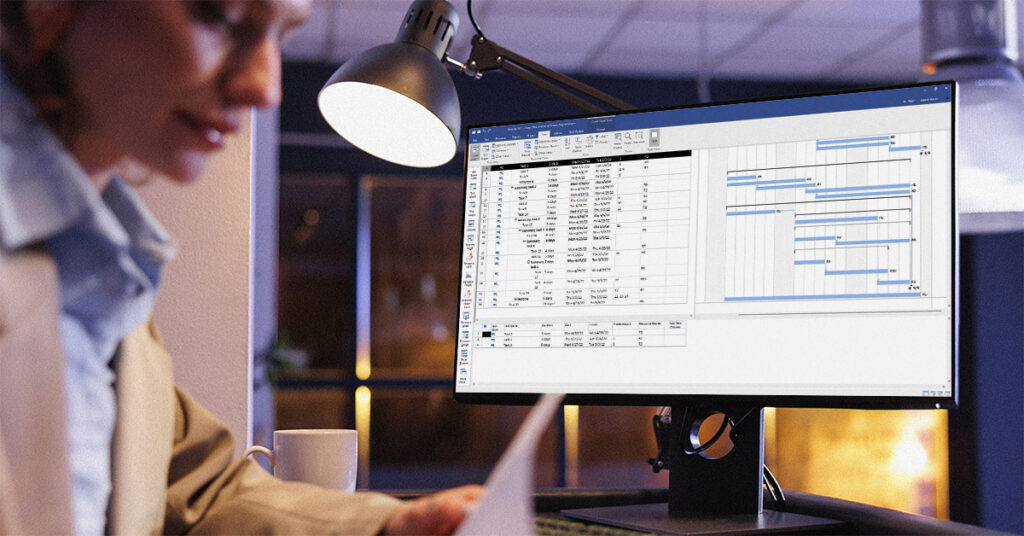
The Microsoft Project Gantt Chart view is the most commonly recognized visualization in project management. It combines a table of tasks with a bar chart timeline that shows task start and finish dates, duration, dependencies, and milestones.
In summary, it provides a visual road map of the project where you can see the task dependencies and activities on the critical path.
For a site engineer, developer, or analyst, this is the big-picture view. The Gantt Chart view helps you quickly see how your tasks fit into the overall sequence of the project timeline and whether delays in one area could affect your work.
And if you are using Seavus Project Viewer, you will get the same clarity without needing access to Microsoft Project.
Task Usage View – Staying on Top of Your Personal Workload

The Task Usage view focuses around the tasks in the project plan. It shows details about which resources are assigned to the tasks.
You can think of this view as your personal workload dashboard. If you have ever wondered, “What exactly am I responsible for this week?” – this is the view that holds the answers for you.
Resource Usage View – Who is Doing What and When
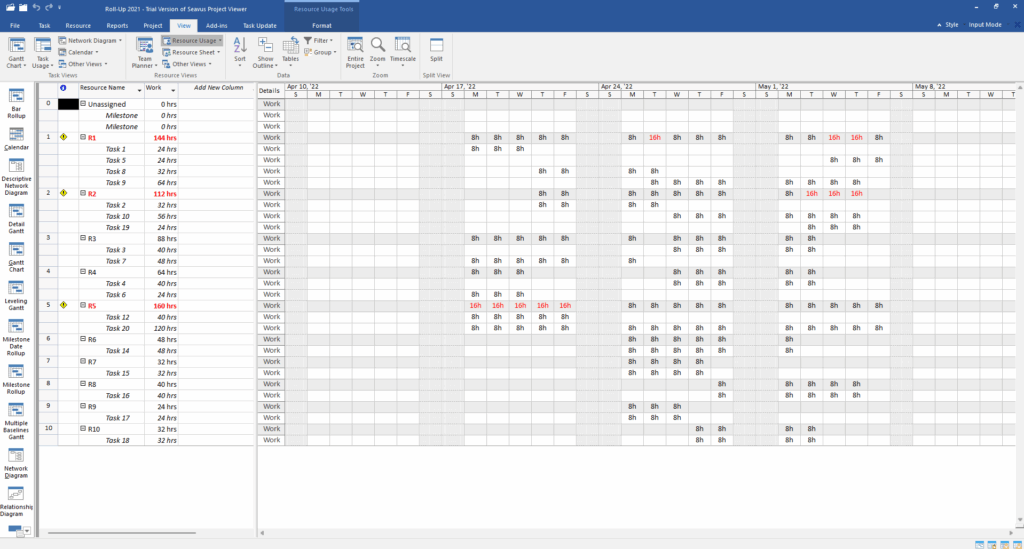
Compared to the Task Usage view, the Resource Usage view takes a resource-first perspective. In other words, it flips the perspective to focus on people and resources. It shows what each team member is working on and how much time is allocated to them.
This view can help you to check whether you’re being overloaded with tasks or if potential conflicts are building up.
Other Views
The following views are also frequently used. They provide the perspectives needed to understand project plans, workloads, and progress across industries.
Resource Sheet View – Your Project Resources at a Glance

The Microsoft Project Resource Sheet view acts as a database where you can see all of the project’s resources.
In this view, labour, equipment, and materials can also be displayed and details such as availability, maximum units, rates, and cost per use can be analyzed.
It is a very useful view, primarily for project managers as it can support them in budgeting and resource allocation, tracking costs and resolving potential conflicts early on. For team members, this view isn’t just about viewing costs, but also about knowing who else is on the project and what resources are scheduled and available.
Tracking Gantt View – Comparing Actual with Planned Progress

The MS Project Tracking Gantt view is an extension of the Gantt Chart view. It uses it a base and on top, it overlays baseline data.
This view tells how actual progress compares to the original plan and is frequently used by project managers.
For team members, this is less about reporting and more about accountability. For instance, here you can see if your tasks are on track, or if there is a gap between where you are and where you should be. Thus, this is a good way to get that early warning and catch up if you are behind plans.
How Seavus Project Viewer Can Help?
Not all team members working on the project necessarily have access to Microsoft Project. In these cases, Seavus Project Viewer can be used as an MPP file viewer that supports these essential MS Project views. This makes it ideal for teams that require read-only access.
With Seavus Project Viewer every team member can open and analyze Microsoft Project plans shared in .mpp format. This ensures that stakeholders, from project engineers to site managers, can stay aligned with timelines, dependencies, and resource allocations.
Seavus Project Viewer accurately supports more than 27 views including, the Gantt Chart, Tracking Gantt, Task Usage, Resource Sheet, Resource Usage views.
In addition, the Team Planner view, Network Diagram and Calendar view are also supported, so team members can access the view that best suits their needs.
Filtering, grouping and sorting options in some of the views are also available in the application, allowing teams to change perspectives within views and quickly find the needed information. Team members can use the viewer and its functionality to focus on their personal assignments and ensure deadlines are timely met.
Task Update
Keeping a Microsoft Project schedule up to date often comes down to one simple thing and that is getting timely updates from the people actually doing the work.
The Task Update add-in in Seavus Project Viewer makes this much easier by giving team members a simple way to report their progress, without needing Microsoft Project on their computers.
With the task update, Seavus Project Viewer gives you a voice in the project.
Instead of relying on emails or scattered spreadsheets, team members can enter updates like percent complete, hours worked, or changes in start and finish dates directly inside Seavus Project Viewer. In other words, if you are 50% done with the task, you can just mark your task progress inside the viewer.
The project manager will receive these updates as feedback. He can then review them and choose whether he will use them to update the main Microsoft Project schedule.
A free 15-day trial is available!
A Cost-Effective Solution for Organizations
Seavus Project Viewer gives team members across the organization full access to view the project data from MS Project schedules. It’s designed with collaboration in mind and is perfectly fit for companies running large projects across different offices or locations.
Imagine you’re a site supervisor on a major construction project. You open the Resource Usage view and immediately see your crew’s assignments for the week. At the same time, procurement is checking the Resource Sheet to confirm when materials are arriving, while executives pull up the Tracking Gantt to compare progress against the baseline.
Everyone is working from the same source of truth, no duplicate files, no confusion.
Similarly, if you’re in IT, a developer can check Task Usage to see workload. if you’re in procurement, Resource Sheet shows suppliers and delivery dates, etc…
That’s the strength of using different views. Each role gets the perspective they need, while staying aligned with the rest of the team.
Understanding Your Involvement in the Project
Understanding which MS Project view to use isn’t just a technical skill, it’s a way to make your daily work easier.
The right view helps you see what is expected of you, when it is due, and how your work fits into the bigger picture. It keeps you from being surprised by delays, helps you spot issues early, and makes collaboration smoother across the team.
And even if you don’t have Microsoft Project, tools like Seavus Project Viewer make sure you actively contribute to the project.
Seavus Project Viewer is a standalone application that allows you to open .mpp files and navigate through the project data, ensuring clarity and alignment across the organization. Teams can rely on the software to view the Microsoft Project schedule, as it fully replicates the views available in Project and displays the data from .mpp files with 100% accuracy.
In the end, the tools and understanding of the views will help you to be efficiently involvement in the project and work smarter.