
Microsoft Project calendars define working time, nonworking time, and resource availability across a schedule. They sit at the heart of the MS Project scheduling engine and understanding the different calendar types interact with each other is essential for accurate timelines, realistic durations, and reliable project plan.
Calendars determine which days count as working time, how many hours make up a standard day, and when resources are actually available to perform the work. Without understanding how calendars and working time operate, even a well-structured task list can produce dates that feel completely out of sync with the real world.
This article takes a deep look at MS Project calendars and working time. We will examine how they influence durations, start and finish dates, resource assignments, and critical path calculations.
What Are Calendars in Microsoft Project
In Microsoft Project, calendars define when work can happen. They show which days are working days, which days are nonworking, and what hours make up the working shifts. These rules affect every task in the schedule, and they directly influence how MS Project calculates duration.
Although the concept sounds simple, in reality calendars interact with each other and from these interactions the dates affecting the work in the plan can be dramatically changed. Understanding these interactions will help you avoid any confusion, and you will be able to more easily find out why a task could sometime not start on the date you expect it to.
There are four types of calendars in MS Project and those are base calendars, project calendars, task calendars, and resource calendars.
Base Calendar
Base calendars define the standard working and non-working times for all projects in your organization. They specify the work hours for each day, week, and also for any exceptions, like holidays.
Three default base calendars are already set up in Project:
- Standard: Monday to Friday, with work time from 8:00 A.M. to 5:00 P.M. and 30-minute break included
- 24 Hours: reflects a schedule with no nonworking time
- Night Shift: Monday night to Saturday morning, with work time from 11:00 P.M. to 8:00 A.M. and 30-minute break included
The other calendars use the base calendar as a template or “base” and then have their own modifications to reflect the unique conditions related to projects, resources, and tasks.
The Project Calendar
Built from the base calendars, the project calendar lies at the core of the project plan for a specific project. This calendar defines the working days and working hours for all tasks that do not have a specific override and controls when work is scheduled.
When you first create a new project, MS Project assigns the Standard calendar. This usually includes:
- Monday to Friday as working days
- Saturday and Sunday as nonworking
- A standard 8-hour workday with typical working hours
The project calendar can be modified to match the needs of your organization. For example, construction projects often use a six-day workweek, while IT teams may prefer standard office schedules.
Resource Calendars
Resource calendars define when individual resources can work. Every resource in MS Project has a calendar, and it influences the schedule when that resource is assigned to a task.
Why resource calendars matter? Even if the project calendar shows a task as available to start on Monday, the assigned resource might not be available. For example:
- A worker is on leave for two days
- A machine is shut down for maintenance
- A consultant only works three days a week
- A design lead works from 10:00 to 16:00 instead of eight full hours
When MS Project schedules a task that requires a resource, it looks at both the task calendar and the resource calendar. If the resource is unavailable, the task is pushed forward automatically.
Example:
You have a five-day task starting Monday, but the assigned resource is available only four hours per day. MS Project recalculates the duration based on actual availability, and the task may extend into the next week.
Resource calendars often create the biggest confusion because they silently push dates around. Once you understand how they work, these behavior patterns become predictable.
Task Calendars
Task calendars are secondary calendars that allow you to override the default calendar in use for specific activity. This is useful when a task follows a different working pattern.
When task calendars make sense:
- A subcontractor works weekend shifts
- A manufacturing step follows a 24-hour machine cycle
- An inspection can only take place during night hours
- A special activity depends on seasonal constraints
When assigned, a task calendar takes priority over the project calendar.
Real world example:
Let us say you have a construction project where concrete curing can occur seven days a week. You can assign a task calendar that allows all seven days to be working time. This prevents the curing duration from extending over weekends when no human work is required.
Task calendars give project managers fine control. Instead of reshaping the entire schedule, you target only tasks that behave differently.
How Calendars Interact in MS Project
The way calendars combine to calculate working time follows a predictable rule: The most restrictive calendar always wins.
If any calendar involved in a task marks a day as nonworking, that day is treated as nonworking for the task.
Interaction logic:
- If the project calendar allows work, but the resource is unavailable, the task waits.
- If the resource is available, but the task calendar blocks the day, the task waits.
- If the task uses a special calendar that allows weekends, but the resource does not work weekends, the task does not progress on weekends.
In essence, everything comes down to the idea that all conditions must be met for work to occur.
Adjusting Working Time
MS Project allows project managers to modify calendars to reflect real project restrictions. Adjustments can include working days, shift changes, seasonal conditions, or custom hours.
Common modifications include:
- Adding company holidays
- Creating two shift or three shift schedules
- Setting up overtime or extended workdays
Example: Adding a holiday
If your company observes a public holiday on May 1, adding it to the project calendar ensures that MS Project treats this day as nonworking. Any task scheduled to occur that day is automatically shifted.
Impact on Duration Calculations
As we have noted above, calendars directly influence how MS Project calculates task duration.
What is task duration?
Task duration refers to the amount of time that a task requires to be finished. Task duration is calculated from the start up until the finish date, excluding any nonworking time like holidays weekends.
What is the difference between duration and elapsed time in MS Project?
Duration is not the same as elapsed time as duration represents working time, not calendar time. As such duration counts only working hours. In contrast, elapsed time includes all hours, even nights and weekends.
Scenario: A five-day task
If the task uses a five-day workweek, five days of duration equals one calendar week.
If the task uses a seven-day workweek, five days of duration may end earlier.
If a resource only works half days, the task might stretch to ten calendar days.
Understanding this helps avoid one of the biggest scheduling frustrations: the feeling that dates are shifting unexpectedly.
Calendars and Working Time in Seavus Project Viewer
For teams who only view .mpp files, Seavus Project Viewer offers a clear way to inspect calendar settings without needing a Microsoft Project license.
This is especially helpful when managers, clients, or field supervisors need to understand why a task behaves a certain way.
Seavus Project Viewer is available in a 15-day free trial version:
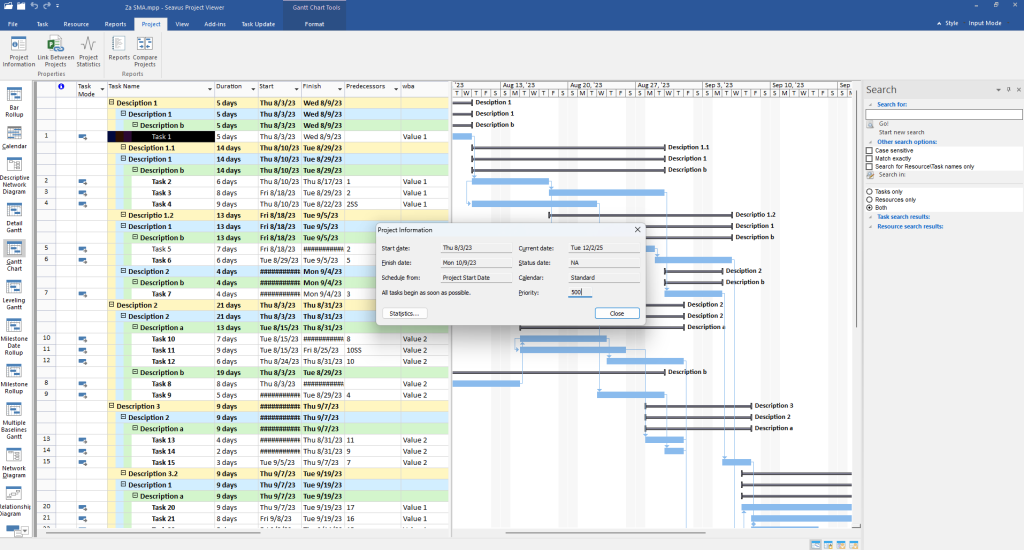
Project Information – Identifying the Master Calendar
The Project Information window is the first place to look when you want to understand what is happening in the project plan. It tells you which base calendar the project relies on, and that choice quietly influences every task.
A quick check here helps you see whether the plan follows a standard workweek, a custom set of hours, or even a client-defined calendar with its own rules and exceptions.
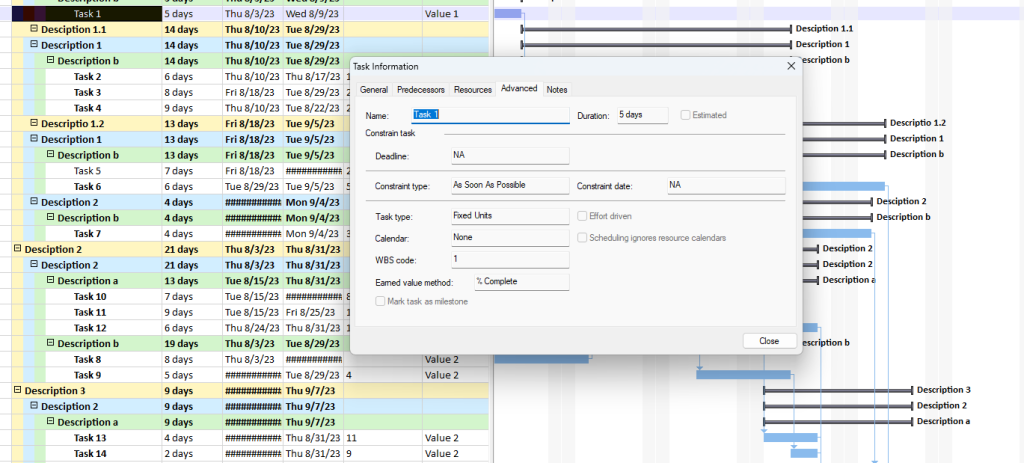
Task Information – Seeing Task-Specific Calendars and Exceptions
Individual tasks may follow different calendars, and this is where misunderstandings can often arise. The Task Information dialog shows which calendar is used by the specific task.
This can help to explain any unusual start or finish dates and clarify why a task doesn’t follow the expected, standard working pattern.
Resource Information – Understanding Availability and Constraints
Resource calendars define when people, equipment, or crews are available. In Seavus Project Viewer, the Resource Information window makes it easy to see these specific schedules, including vacations, nonworking periods, and custom availability rules. This is crucial for understanding resource-driven delays or why certain tasks cannot begin until a specific resource becomes available.
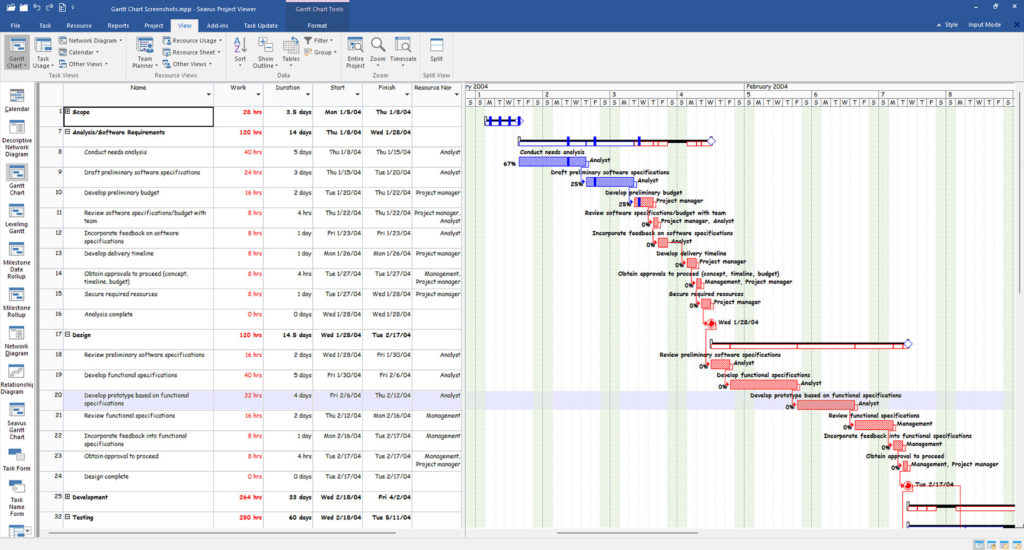
Gantt Chart View – Visual Indicators of Nonworking Time
In the Gantt Chart, nonworking days stand out instantly thanks to the shaded sections across the timeline. Weekends, holidays, and other downtime become easy to spot without digging into any menus. When a task stretches over those shaded areas, you can immediately see why it might be taking longer or starting later than expected. It’s one of the fastest ways to notice when the planned work doesn’t quite line up with the calendar rules behind the schedule.
Why Calendars Matter
Calendars play a big role in the project plan.
Understanding MS Project calendars and working time is essential for anyone who wants to build or analyze a realistic schedule. You can map out every task perfectly and connect all the dependencies just right, but if the working time behind the scenes doesn’t match reality, the whole plan can feel off.
A solid calendar setup makes everything more reliable. It also cuts down on those surprise delays that pop up when the calendar isn’t aligned with how the team actually works.
A project manager who truly understands calendars can diagnose schedule issues far more quickly, because when a date seems wrong, the calendar is usually the first place to look, and Seavus Project Viewer is the perfect tool for these types of audits.